Once you've trained a RagmyAI chatbot on your documents, you have three ways to put it in front of visitors: a script tag, an iframe, or a public URL. They're not interchangeable. Here's how to pick the right one — with copy-paste code for each. If you'd prefer a quick-start landing page overview, see the embed AI chatbot guide.
Option 1: Script tag (recommended for most sites)
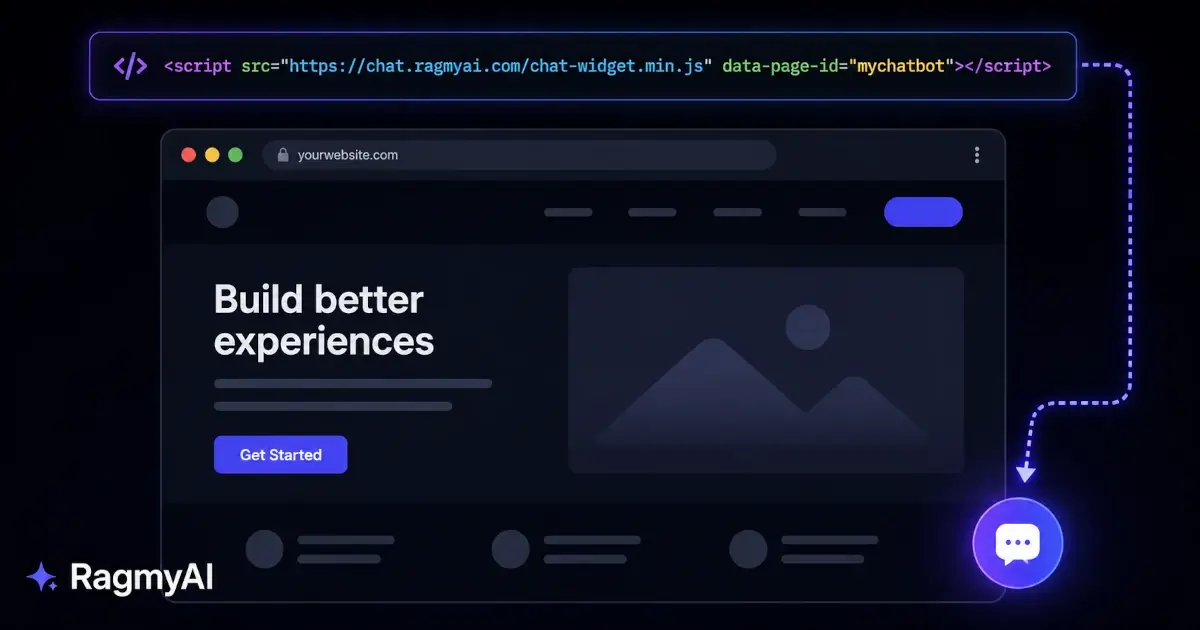
The script tag drops a floating launcher into the bottom-right corner of your page — the same style as every major live-chat widget. Visitors click it, a chat window opens, and they interact with your AI without leaving your page.
<script
  src="https://chat.ragmyai.com/chat-widget.min.js"
  data-page-id="YOUR_CHATBOT_ID">
</script>
Paste this before </body> on any page you want it to appear. Replace YOUR_CHATBOT_ID with the ID from your Web Chat > Script Tag.
Best for: Product pages, documentation sites, e-commerce stores, support pages — anywhere you want a non-intrusive help button that doesn't break the layout.
Option 2: Iframe (full control over placement)
An iframe lets you embed the chat interface at a specific location in your page — inline, inside a sidebar, inside a modal. You decide the dimensions; the chatbot fills them.
<iframe
  src="https://chat.ragmyai.com/YOUR_CHATBOT_ID"
  allow="microphone"
  width="300"
  height="400">
</iframe>
Best for: Knowledge bases where you want the chatbot embedded in the page body, help centre layouts, or any situation where the floating button would feel out of place.
Option 3: Public URL (no code required)
Every chatbot gets a public URL: https://chat.ragmyai.com/YOUR_CHATBOT_ID. Share it directly — in an email, a QR code, a Notion page, a Slack message. Anyone with the link gets a full-page chat interface.
Best for: Internal tools, client handoffs, prototypes, sharing with people who need access but aren't on your website.
Monitoring and retraining
Once your chatbot is live, your Web Chat > Notifications shows every exchange visitors have had. You can read any conversation and tap "Retrain" on any answer that was wrong or incomplete — it opens the training editor with that exchange pre-loaded so you can correct it in context.
This is the most efficient feedback loop for improving answer quality: real questions from real visitors, corrected one by one, each making the next answer sharper.
Moving over from another tool? See how RagmyAI compares in our guide to the best free Chatbase alternative.